

How to Build a Gaming PC on a Budget: A Practical Step-by-Step Guide
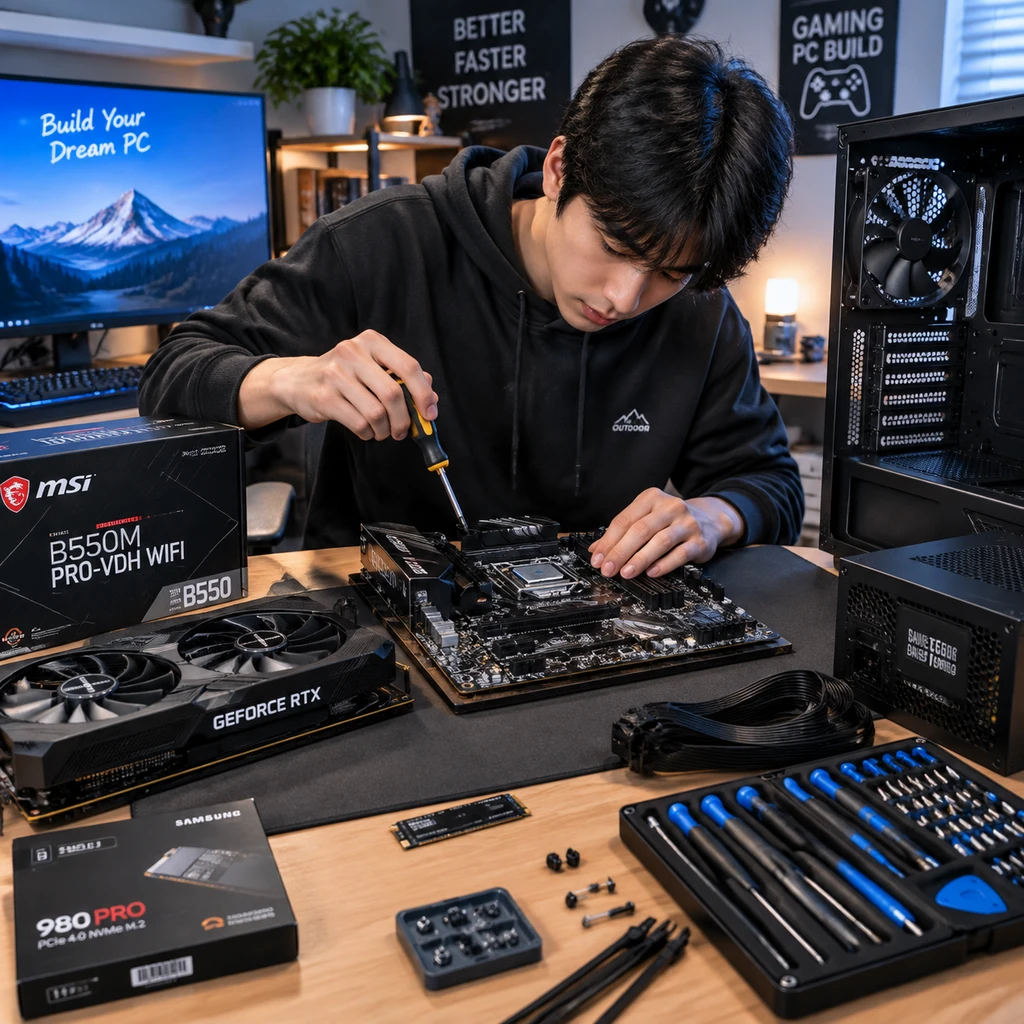
Building a gaming PC on a budget means matching your parts to the games and performance you actually want, then checking compatibility before you buy. A balanced build can deliver smooth play in esports titles without spending on hardware you will not use.
Start with a spending limit that includes more than the tower: a monitor, keyboard, mouse, operating system, and headset can all affect the total. Then choose parts around your target resolution and frame rate. Stable performance matters in tournament play, but expensive components alone do not guarantee better results.
Set a realistic budget and performance goal
Set your budget by deciding which games, resolution, and frame-rate target matter most. That goal determines whether your build needs a stronger graphics card, a faster CPU, or simply enough memory and storage.
List the games you play and check their recommended system requirements, especially for demanding titles. A PC intended mainly for competitive games such as Valorant, League of Legends, or Rocket League has different needs from one built for graphics-heavy single-player games. Requirements also change with resolution, visual settings, and updates.
Write down a practical target, such as playing at 1080p with a steady frame rate at competitive settings. Treat that as a planning goal, not a guaranteed result: performance depends on the specific parts, game, and settings. If you already own a monitor or peripherals, subtract them from the budget you need for the PC itself.
Keep a small reserve for costs that are easy to overlook, including shipping, an extra case fan, or a Wi-Fi adapter if the motherboard lacks wireless networking. Spending the entire budget on headline components can leave you short on essentials.
Prioritize the parts that matter most for gaming
For most gaming builds, the graphics card (GPU) has the greatest effect on visual performance, while the CPU determines how well the system can feed it game instructions. Balance both parts for your resolution and games instead of buying the most expensive component you can afford.
At 1080p, many esports games can run well on modest hardware, but a weak CPU may limit frame rates in busy scenes or with many players on screen. A stronger GPU matters more when you raise resolution or visual quality. Look at benchmarks for the exact games you play, and compare performance at settings similar to your own.
Plan the core parts as a team:
- CPU: Choose a current or reputable previous-generation processor that fits your motherboard socket. Check reviews for gaming performance rather than relying on core count alone.
- GPU: Compare real game benchmarks, power needs, and memory capacity. Avoid paying extra for features you will not use at your target resolution.
- RAM: 16 GB is a sensible starting point for many budget gaming PCs. Two compatible memory modules can support dual-channel operation; check the motherboard’s memory type and supported speeds.
- SSD: An SSD makes booting and game loading more responsive than an older hard drive. Capacity determines how many large games you can keep installed.
Gaming performance is also affected by background apps, drivers, and game settings. Tournament play often favors consistent frame delivery and a responsive display over maximum graphics detail. If your budget forces a choice, prioritize a well-matched CPU and GPU, then add storage or memory capacity later if the motherboard and budget allow.
Choose compatible components and avoid hidden costs
Choose compatible components by checking the CPU socket, motherboard memory support, case dimensions, and PSU connections before ordering. A part that looks like a bargain is no saving if it does not fit or requires costly replacements.
Use the motherboard specifications to verify that its socket supports your chosen CPU; some boards also need a BIOS update before they can run a newer processor. Confirm whether the board takes DDR4 or DDR5 RAM, since these memory types are not interchangeable. Check how many M.2 or SATA connections it provides if you plan to add storage later.
Next, compare the graphics card’s length and thickness with the case’s clearance. Make sure the case supports the motherboard size, such as ATX or Micro-ATX, and has enough space for the CPU cooler. A compact case may cost less, but it can restrict airflow and make assembly harder for a first-time builder.
The power supply unit (PSU) needs enough capacity for the CPU and GPU, plus the correct power connectors. Use the manufacturers’ specifications and a reputable PSU calculator as planning tools, then check independent reviews for the exact PSU model. Do not choose a no-name power supply solely because its advertised wattage is high.
Budget for the full setup, including the monitor, keyboard, mouse, operating system, Wi-Fi, and any adapters. A high-refresh-rate monitor can be useful for competitive play, but it only helps if the PC can produce enough frames in your chosen games. Choose a display and PC together rather than treating them as separate decisions.
Save money without sacrificing reliability
Save money by comparing the total cost of compatible parts, considering well-reviewed older components, and avoiding upgrades that do not improve your actual gaming experience. Keep reliability and support in view; the cheapest listing is not automatically the lowest-cost choice over time.
Compare prices across reputable retailers and check shipping, return terms, and warranty coverage. Bundle deals can help, but verify each part’s model number and compatibility rather than assuming a listed set works together. Prioritize discounts on parts with a clear performance benefit, especially the GPU, CPU, and monitor.
Older CPUs, motherboards, and graphics cards can offer good value when reviews show that they meet your goals. Used parts carry extra risk: a GPU may have been heavily used, and a private sale may offer limited recourse if it fails. Ask for the exact model, proof that it works, and a return option when possible. Test used hardware promptly after purchase.
Do not cut corners on a reliable PSU, and do not spend a large share of the budget on cosmetic extras such as elaborate lighting. A practical case with good airflow can protect temperatures without a premium finish. Leave room for an eventual upgrade, but avoid buying a more expensive motherboard for features you have no plan to use.
A useful budgeting rule is to separate each choice into three questions: Does it fit? Does it meet the performance goal? Is the added cost worth the benefit? If a component fails the first check, it is out. If it passes the first two but not the third, look for a cheaper alternative.
Assemble the PC and complete a first boot
To assemble a gaming PC, prepare a clean work area, install the CPU, RAM, and SSD on the motherboard, mount the board in the case, then connect the PSU, graphics card, and cables. Follow the manuals for each part and check every connection before switching on the system.
Work on a hard surface rather than carpet, and handle components by their edges. Avoid forcing connectors or parts; most fit in only one orientation. Keep screws organized, and use the motherboard manual to identify the front-panel, fan, and power connections.
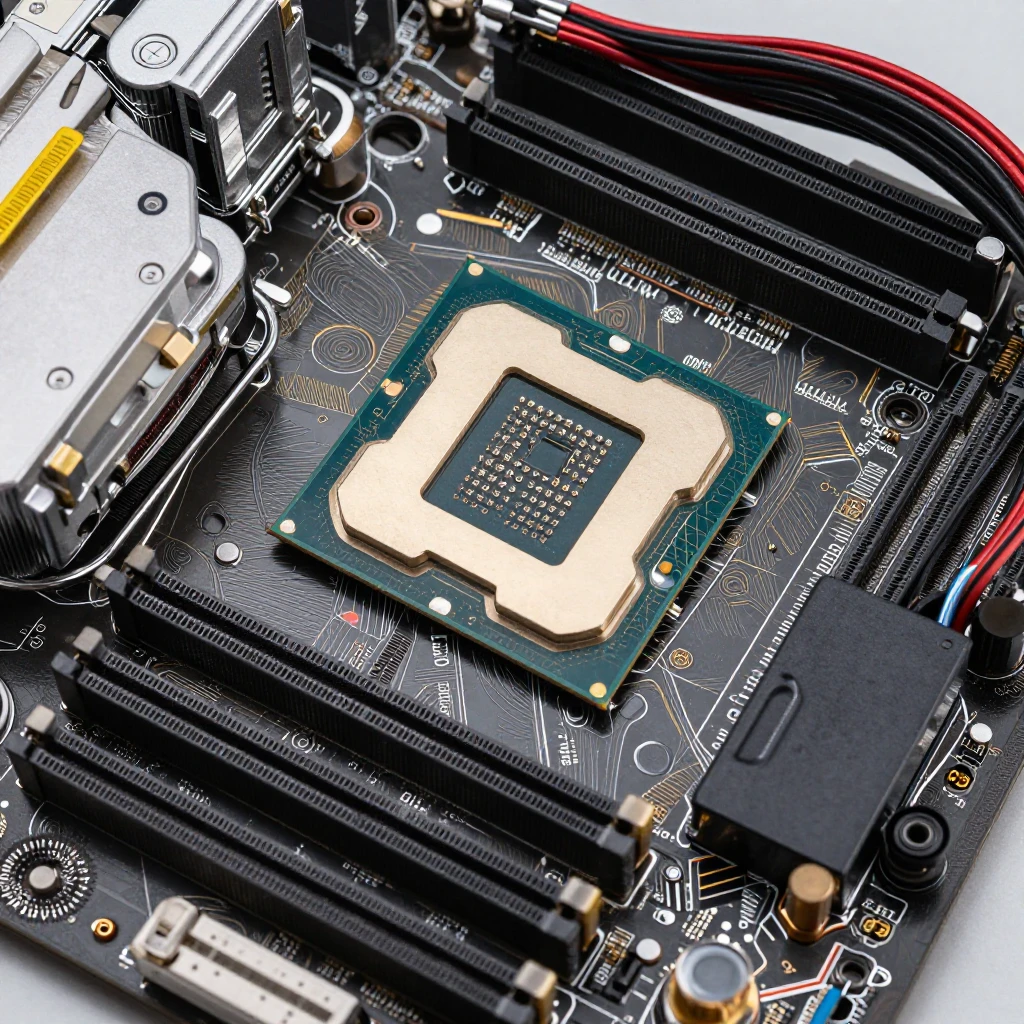
- Install the CPU according to its socket instructions, then attach the cooler. If the cooler does not have thermal paste pre-applied, apply it as directed by the cooler maker.
- Seat the RAM in the slots recommended by the motherboard manual and install the M.2 SSD, if applicable.
- Fit the motherboard into the case on its standoffs, then mount the PSU and connect the main motherboard power cable and CPU power cable.
- Install the graphics card in the correct PCIe slot and connect its required power cables. Connect case fans and front-panel buttons using the motherboard diagram.
- Connect a monitor to the graphics card, attach a keyboard, and power on. If the system starts, enter the BIOS or UEFI to confirm the CPU, RAM, and SSD appear.
If the PC does not boot, turn it off and recheck the power supply switch, power cables, RAM seating, and monitor connection. Avoid repeatedly switching it on without checking for a cause. Once it boots, install the operating system, motherboard and GPU drivers, and system updates.
Test performance for games and tournaments
Test a new gaming PC by checking stability, temperatures, drivers, and frame rate in the games you plan to play. Use real matches or repeatable practice scenes, because a synthetic benchmark alone cannot show how the system feels in competition.
Install the latest stable graphics driver from the GPU manufacturer and update the operating system. Then check CPU and GPU temperatures under load with a trusted monitoring tool. Compare readings with the component makers’ guidance; if temperatures climb unusually high or the system shuts down, check cooler mounting, fan direction, and airflow before continuing.
Run a short stress test or a demanding game session, then look for crashes, visual glitches, stuttering, or unexpected restarts. Test at the resolution and settings you plan to use. If frame delivery is uneven, lower demanding graphics options, close unnecessary background programs, and make sure the monitor is set to its intended refresh rate.
For tournament play, favor settings that deliver consistent response and clear visibility. A lower graphics preset may improve steadiness on a budget system, but results vary by game and hardware. Avoid changing several settings at once; adjust one, replay the same scene, and compare. That makes it easier to identify what helped.
Before an event, confirm that your drivers and game updates are installed, your headset and input devices work, and your settings are saved. A stable PC is more useful in a tournament than a system that produces a high score once but crashes during a match.
Frequently asked questions
These common questions cover spending priorities, used graphics cards, RAM capacity, and esports performance for a budget gaming PC.
Which component should I spend the most on?
For many gaming builds, the GPU deserves the largest share because it has a major effect on graphics performance. The right balance depends on your games and resolution, so avoid pairing a powerful graphics card with a CPU that cannot keep up in the titles you play.
Is a used graphics card worth considering?
A used GPU can stretch a budget if the seller is reliable, the card passes testing, and the price reflects its age and warranty status. Check the exact model, test it soon after purchase, and be prepared for less protection than you would get with a new card from a retailer.
How much RAM does a budget gaming PC need?
For many budget gaming PCs, 16 GB is a practical starting point. Check the recommended requirements for your games and consider 32 GB if your workload includes memory-heavy games, streaming, or several demanding apps at once.
Can a budget PC handle esports games?
Yes, many esports titles can run on affordable PCs, though the result depends on the game, settings, and exact components. Check benchmarks for your chosen CPU and GPU, then test the system for steady performance before relying on it in tournament play.